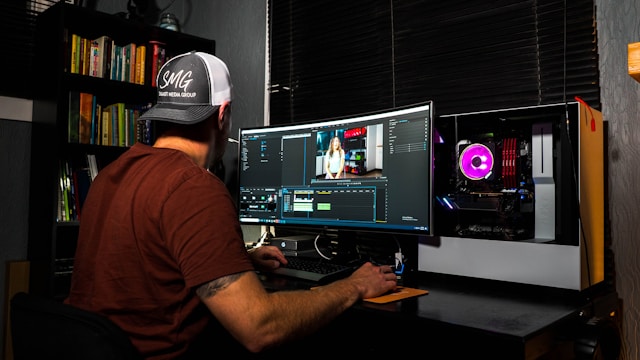
Creating videos for YouTube today no longer requires a studio setup or expensive gear. Most of what people now watch is filmed on smartphones and edited with simple tools — and that’s already enough to produce content that looks clean and intentional.
The difference between average videos and polished ones usually isn’t the camera — it’s what happens in post-production. Editing shapes the pace, removes distractions, and helps the viewer actually stay with the story instead of dropping off halfway through.
If you’re trying to figure out how to make your YouTube videos look more polished, it usually comes down to a few basic editing decisions. Things like tightening audio, fixing pacing, adding structure, and using visual support where it actually helps.
This guide breaks down those practical editing steps so you can improve your videos without overcomplicating the process or relying on advanced production skills.
Why Editing Matters More Than Equipment
Many new creators assume that buying a better camera will instantly improve their videos. While good equipment can help, viewers are far more likely to forgive average visuals than poor editing.
A well-edited video:
● Keeps viewers engaged longer
● Removes unnecessary pauses and distractions
● Improves clarity and pacing
● Helps storytelling feel more structured
● Creates a more polished presentation
Even basic video edits can make your content look significantly more polished.
How to Edit YouTube Videos Like a Pro
Clean Up Your Audio and Tighten Your Edit
One of the biggest mistakes beginners make is focusing entirely on visuals while ignoring audio quality and pacing.
Viewers may tolerate slightly imperfect footage, but they quickly click away when audio sounds noisy, echoey, or difficult to understand. The same happens when videos contain long pauses, filler words, repeated phrases, or awkward silences.
Before publishing, take time to:
● Reduce background noise
● Normalize volume levels
● Remove microphone hiss
● Cut long pauses
● Eliminate repeated phrases and mistakes
● Remove distracting sounds
These simple adjustments can dramatically improve the viewing experience. Cleaner audio makes your content easier to follow, while tighter editing keeps the pace moving and helps maintain audience attention.
Many modern editors automate these tasks. For example, Movavi Video Editor includes AI-powered noise removal and automatic silence removal, helping creators clean up recordings without spending hours on manual editing.
These features are particularly useful for talking-head videos, tutorials, product reviews, interviews, and online courses, where clear communication matters more than visual effects.
In many cases, improving audio quality and removing unnecessary pauses can make a bigger difference than upgrading your camera.
Edit YouTube Videos with Better Color Correction
Color correction is another technique that instantly improves production value.
Even footage shot on a phone can look more professional with simple adjustments to brightness, contrast, and color balance.
Basic color improvements include:
● Correcting white balance
● Increasing contrast slightly
● Improving skin tones
● Enhancing overall brightness
● Creating consistent colors across clips
Avoid overusing filters. Subtle adjustments usually look more professional than heavily stylized effects.
Add Subtitles to Improve Engagement
Subtitles are no longer optional.
Many viewers watch videos with the sound off, especially on mobile devices. Captions help them follow the content regardless of their environment.
Benefits of subtitles include:
● Better accessibility
● Higher viewer retention
● Improved comprehension
● Increased engagement
● Wider reach for different audiences
Automatic subtitle generation has become significantly more accurate in recent years, making it easier for creators to add captions without spending hours transcribing videos manually.
If you regularly create tutorials, reviews, educational content, or product demonstrations, subtitles can provide a noticeable boost in viewer experience.
Use Transitions Sparingly
One common beginner mistake is overloading videos with flashy transitions.
Professional editors typically use simple cuts for most scenes and reserve transitions for specific storytelling purposes.
Good uses of transitions include:
● Showing a passage of time
● Moving between topics
● Switching locations
● Introducing a new section
In most cases, a clean cut looks more professional than an elaborate animation. Remember that viewers come for the content, not for transition effects.
For quick edits, some creators use browser-based tools or lightweight online editors that simplify trimming, formatting, and preparing videos for YouTube without installing software. For example, tools like https://www.movavi.com/tools/youtube-video-editor/ can be useful for basic editing tasks such as cutting clips, adjusting timing, or preparing videos for upload.
Add B-Roll Footage
B-roll refers to supplementary footage that supports your main narrative.
Examples include:
● Screen recordings
● Product close-ups
● Behind-the-scenes clips
● Environmental shots
● Demonstrations
B-roll helps illustrate your points while making videos more visually engaging.
For example, if you’re explaining a software feature, showing the actual screen instead of remaining on a talking-head shot creates a more dynamic viewing experience.
Many creators combine B-roll with techniques such as screen recording and visual annotations to improve clarity and viewer retention.
Export Videos Using the Correct Settings
Even well-edited videos can look poor if exported incorrectly.
When learning how to edit videos for YouTube, understanding export settings is essential.
Recommended settings include:
● Resolution: 1920×1080 (Full HD) or 3840×2160 (4K)
● Frame rate: Match the original footage
● Format: MP4
● Codec: H.264 or H.265
● Bitrate: Appropriate for your resolution
Using the correct export settings helps preserve image quality while keeping file sizes manageable.
Many editors also include YouTube-specific export presets that simplify this process.
For creators working with multiple video formats, understanding video conversion and compression settings can further improve upload quality and workflow efficiency.
Keep Branding Consistent
Professional channels typically maintain a consistent visual identity.
This includes:
● Fonts
● Colors
● Intro sequences
● Lower-thirds
● Thumbnail style
Consistency helps viewers recognize your content instantly and strengthens your overall brand.
You don’t need elaborate animations. Simple and repeatable branding elements are often more effective.
Final Thoughts
If you’re trying to figure out how to make a video look professional, focus on editing rather than expensive gear. Clean audio, tighter pacing, better color correction, subtitles, thoughtful B-roll, and proper export settings can dramatically improve the quality of your content.
The most successful creators understand that great YouTube video editing is about enhancing the viewer experience. By applying these practical video editing tips, you’ll be able to create videos that look more polished, hold attention longer, and help your channel grow—regardless of your budget or production setup.